
Shipping My Own Game: Revives, Save Codes and Building It Right

For 22 years, Nuts and Bolts Web Design has built websites and kept systems running for other people. Now I’m building something of my own: Cul-de-Sac Crew™: Suburban Survivor, a game about a neighborhood crew taking back their block. I’m going to use this blog to share what goes into it, the business side and the tech side, the same way I’d walk a client through a project.

This first post covers the update I just finished. It took three builds and a few long days. Here’s what I built, and why I built it the way I did.

Start with the player, then the business

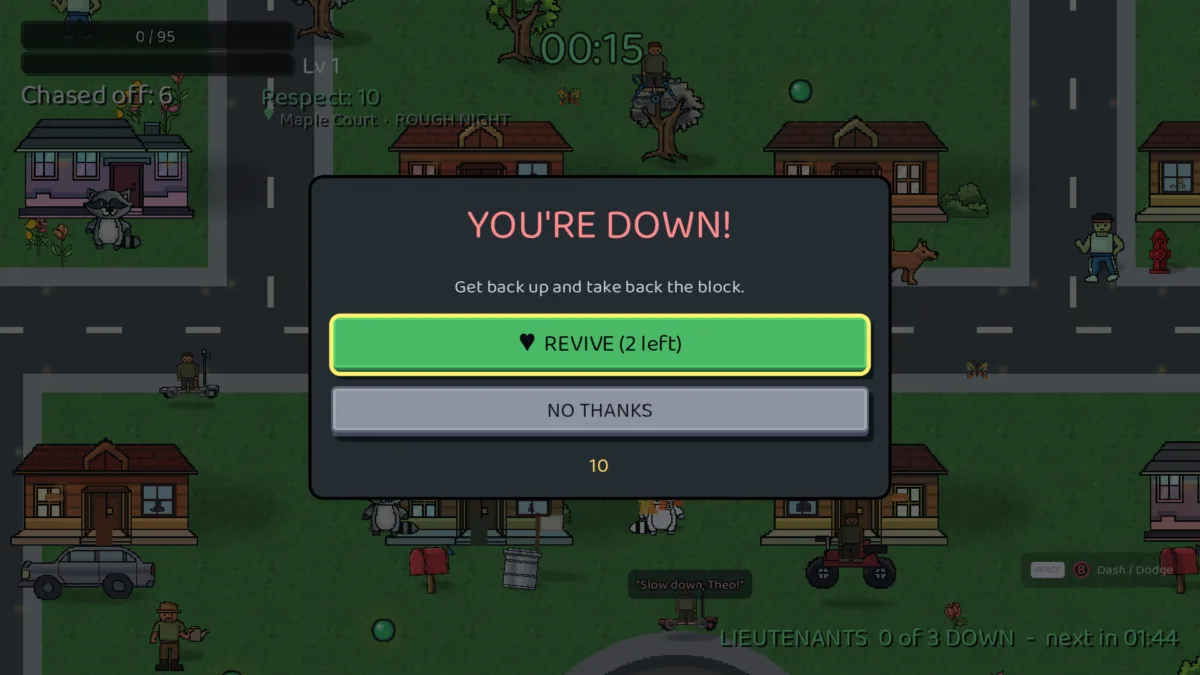
The headline feature is revives. When you go down, the game offers to bring you back. You get 2 per run, back up with 60% health and 8 seconds of protection.
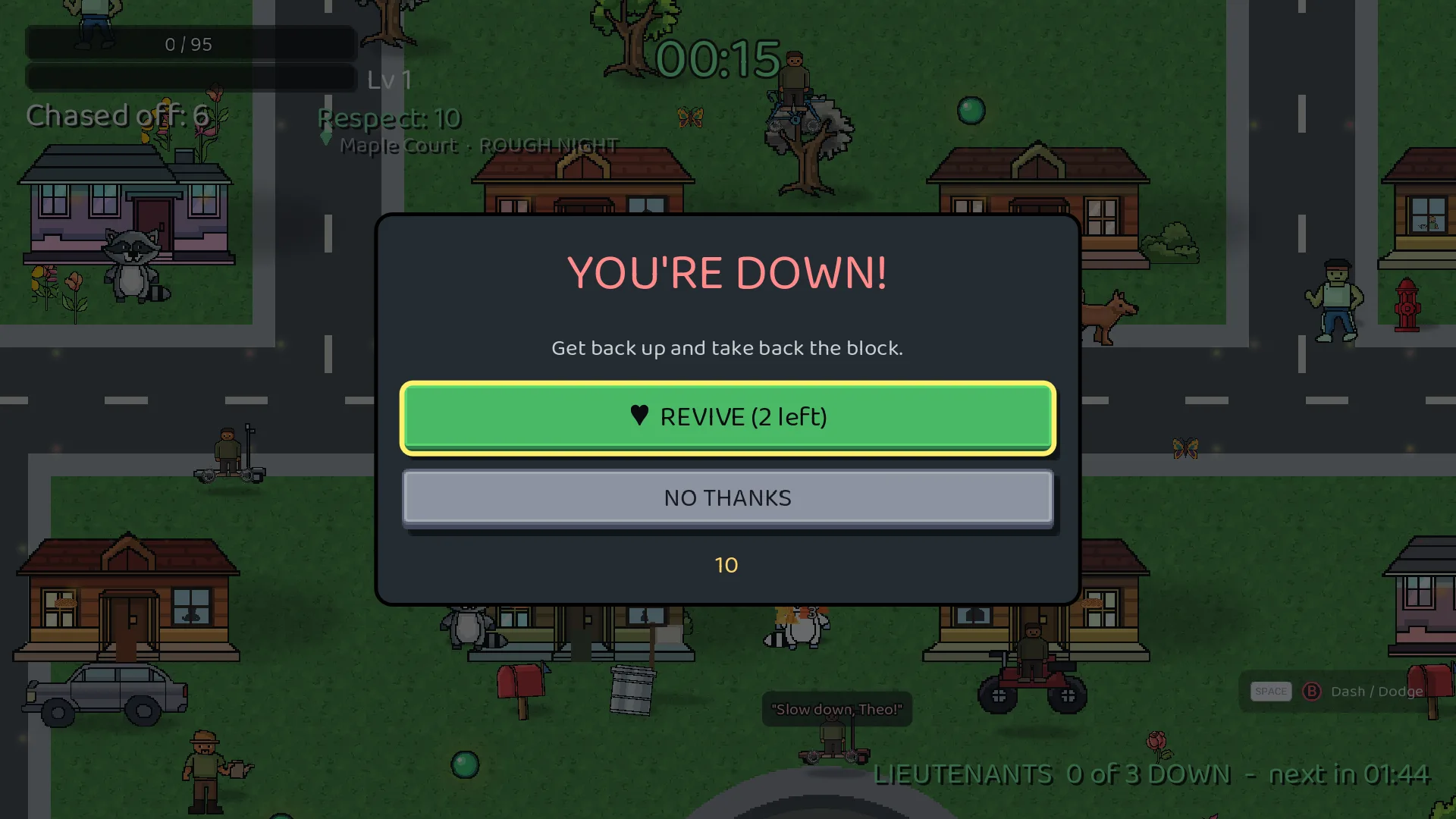
The "YOU'RE DOWN!" revive offer with a REVIVE button, a NO THANKS button and a 10 second countdown
The “YOU’RE DOWN!” revive offer with a REVIVE button, a NO THANKS button and a 10 second countdown.

That sounds simple. The decisions behind it weren’t.

Revives are also how the free versions of the game will pay for themselves. On the browser and Android versions, a revive will cost a short ad, and only if you choose to watch it. I had to decide what happens in every case before writing a line of code:

  • The player watches the ad: they get the revive.
  • They close it early: no revive, and they’re back at the offer to decide again.
  • There’s no ad available: they get the revive free. Running out of ads is the ad network’s problem, not the player’s.
  • They’re running an ad blocker: no revive, and a friendly note explaining that ads keep the game free, with a link to support the game directly.
  • They bought the game on PC: free revives, no ads. They already paid.
  • They’re playing the free demo: free revives, no ads, ever. The demo’s job is to show the game at its best.

That last one was a late call. The demo didn’t have revives at first. Then I watched the effect in action and decided it’s one of the best moments in the game. Hiding it from the people deciding whether to buy didn’t make sense.

The point for any business owner: write down every path before you build. The edge cases are where trust gets won or lost.

Make the moment count
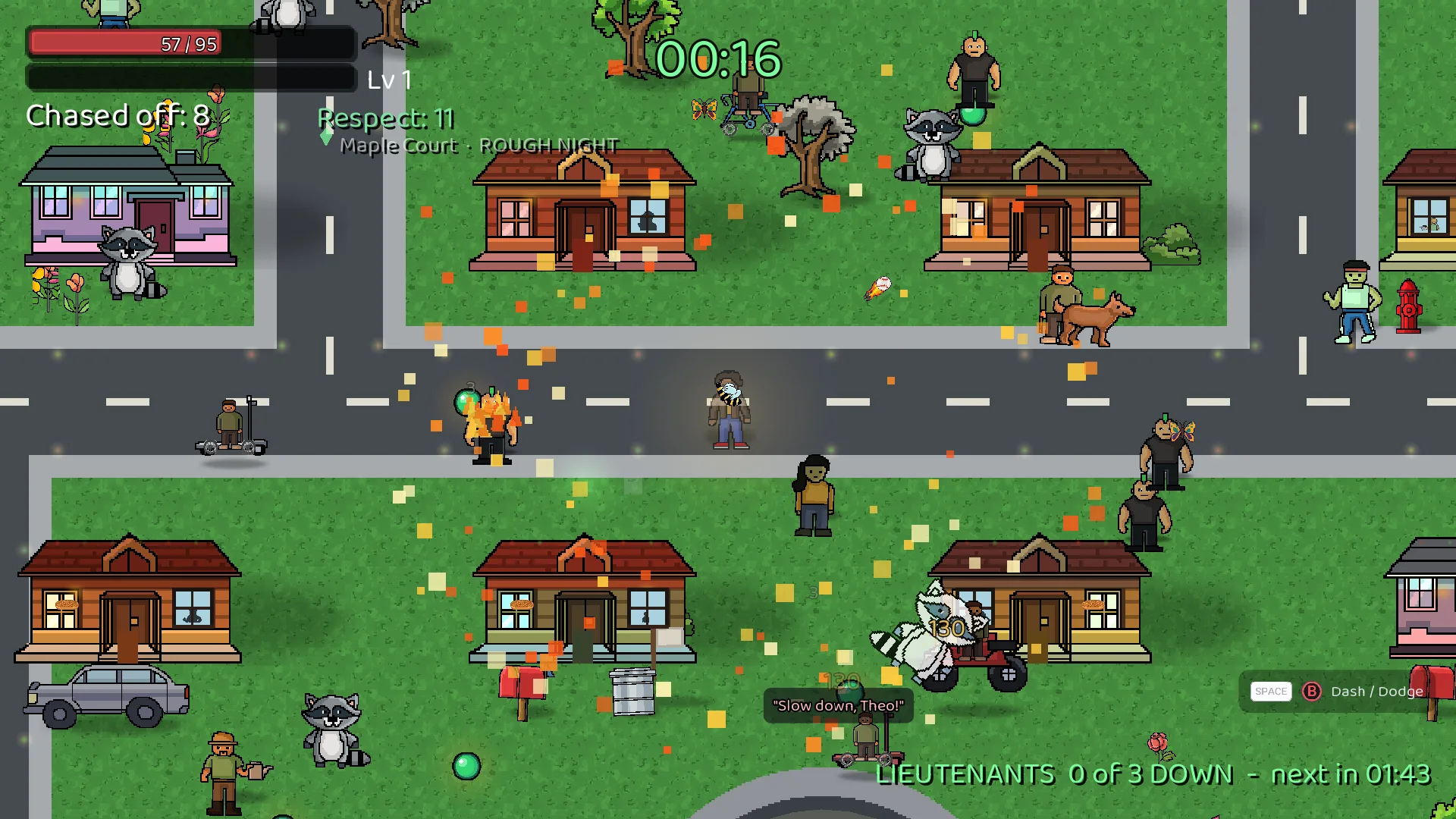
Theo getting back up as a ring of orange and gold pixels pushes the crowd away
Theo getting back up as a ring of orange and gold pixels pushes the crowd away.

A revive shouldn’t feel like a menu. When you get back up, your crew member blasts out a ring of pixels in their own dash colors, the crowd gets shoved back, and the screen hits with a new shock wave: a zoom punch, one thump, then a rolling wave. I made it different from the game’s other screen shakes on purpose. Your eyes and your gut should both know something big just happened.

No accounts. Ever.
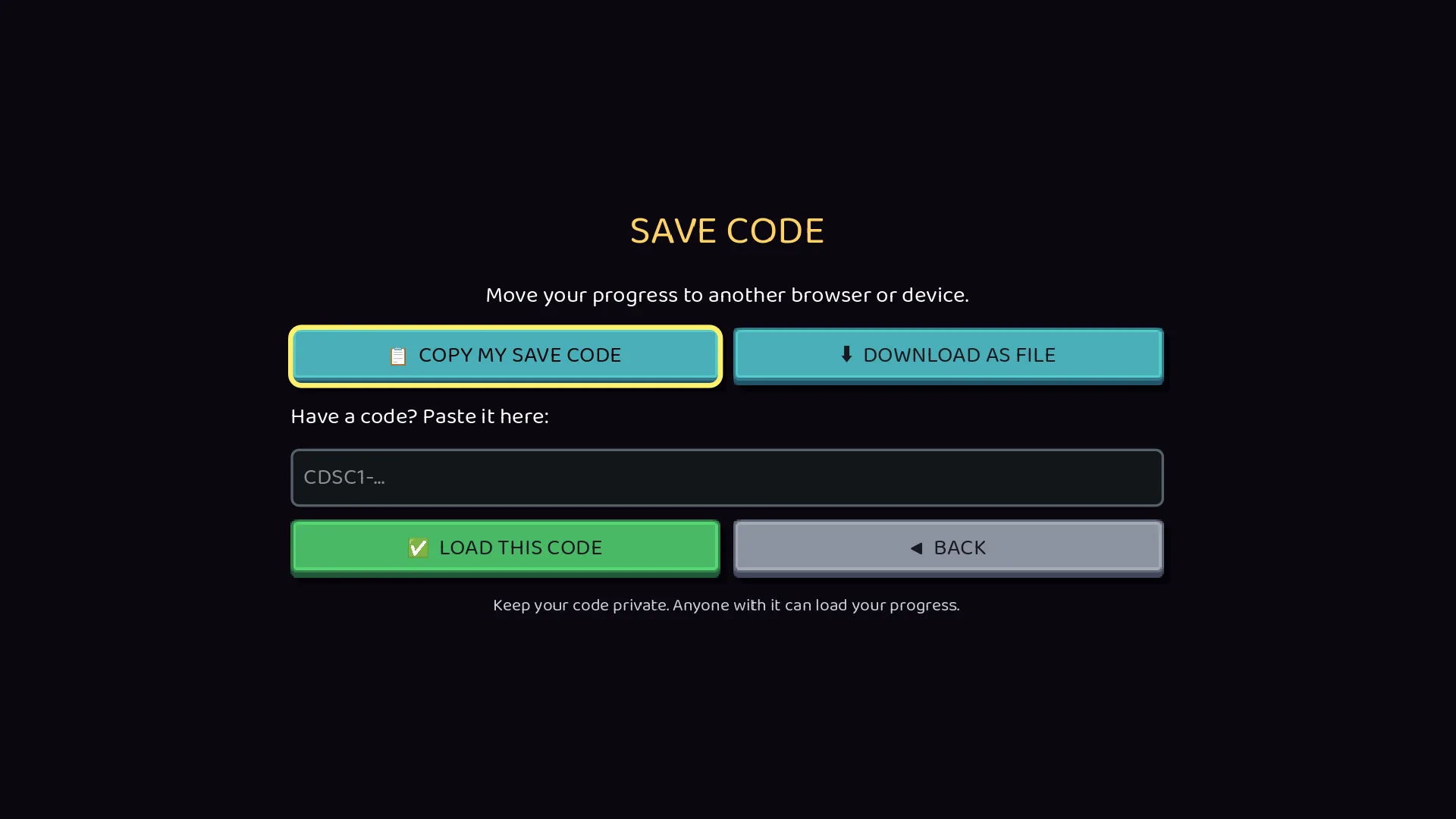
The Save Code screen with Copy, Download, Paste and Load buttons
The Save Code screen with Copy, Download, Paste and Load buttons.

Every game runs into the same question: how do players move their progress from one computer to another? The usual answer is accounts, with logins, emails, passwords and a database of player info to protect.

I didn’t want any of that. This game is made for all ages, kids included, and the safest data is data you never collect. So I built Save Codes instead. The game packs your progress into a code. Copy it, paste it somewhere else, and you’re back. The code holds progress and settings only. No name, no ID, no date. The same save always makes the same code, so nobody can track anyone with it.

I also built in the safety nets I’d want as a user. The game shows you what’s in a code before loading it, backs up your current save first, and gives you an UNDO button. Every one of those came from asking “what’s the worst thing that could happen here?”

Measure what matters, keep nothing you don’t need

The full game now sends anonymous stats when a run ends: stage, crew member, difficulty, how long the run lasted, how far it got and how smoothly it ran. No names, no accounts, nothing typed by the player, and the stats server doesn’t keep IP addresses. Each launch gets a random session number that’s never saved to the device. The free demo sends nothing.

The stats go to a small server I run myself, not to a third party. That’s my IT side talking. If I’m asking players to trust me with even anonymous data, I want to control where it lives.

The stats have already paid off. The first live data showed every field arriving exactly as designed, and I could see quits, revives and save code use come in from real play the same day the update went out.

Fix the bug players can feel

This update also fixed a bug I’m glad to be rid of. Right after the game’s safe opening, enemies started arriving about 3 times faster than designed, all the way to the 5 minute mark. It felt like hitting a wall at 30 seconds. It came down to one piece of logic attached to the wrong condition. On Rough Night difficulty, the board at 45 seconds went from about 124 enemies to about 68.

That’s a lesson I’ve seen in client work for two decades. When something feels wrong in use, it usually is, even when the code “works.”

Small things, done right
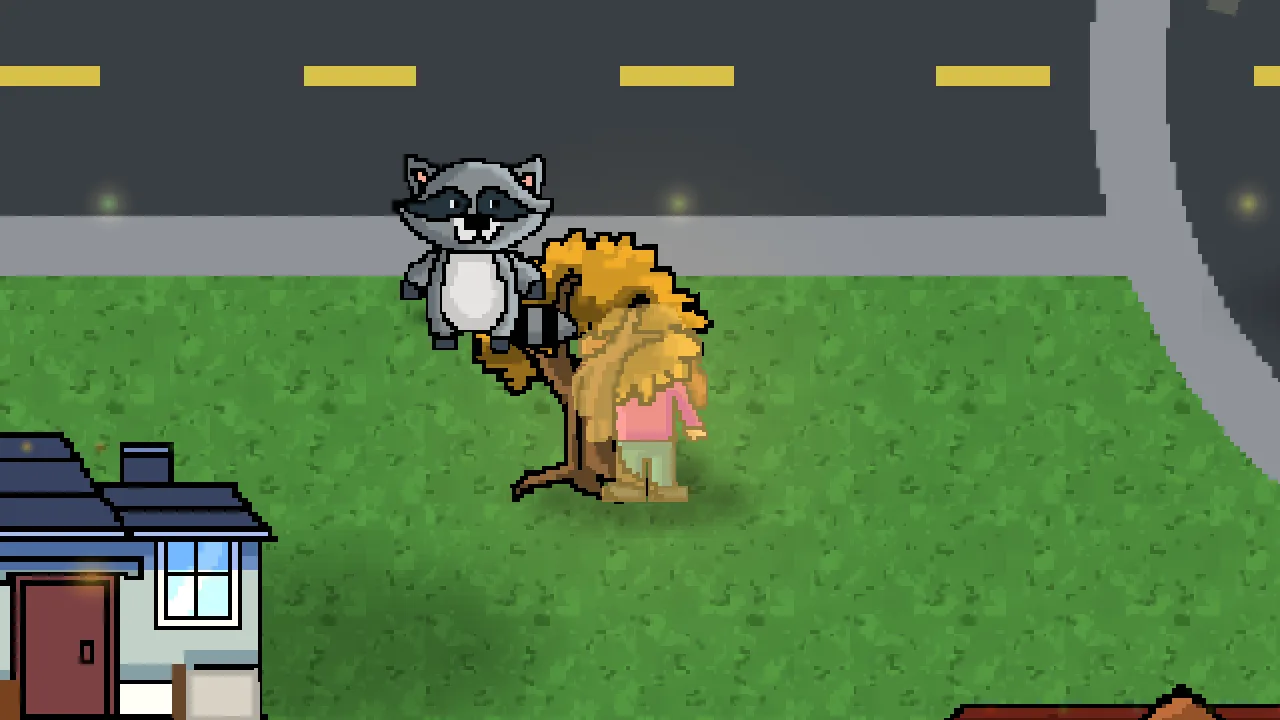
Gabriella behind an autumn tree, showing through the leaves as a silhouette
Gabriella behind an autumn tree, showing through the leaves as a silhouette.

  • Your crew member shows through trees, houses and cars as a colored silhouette.
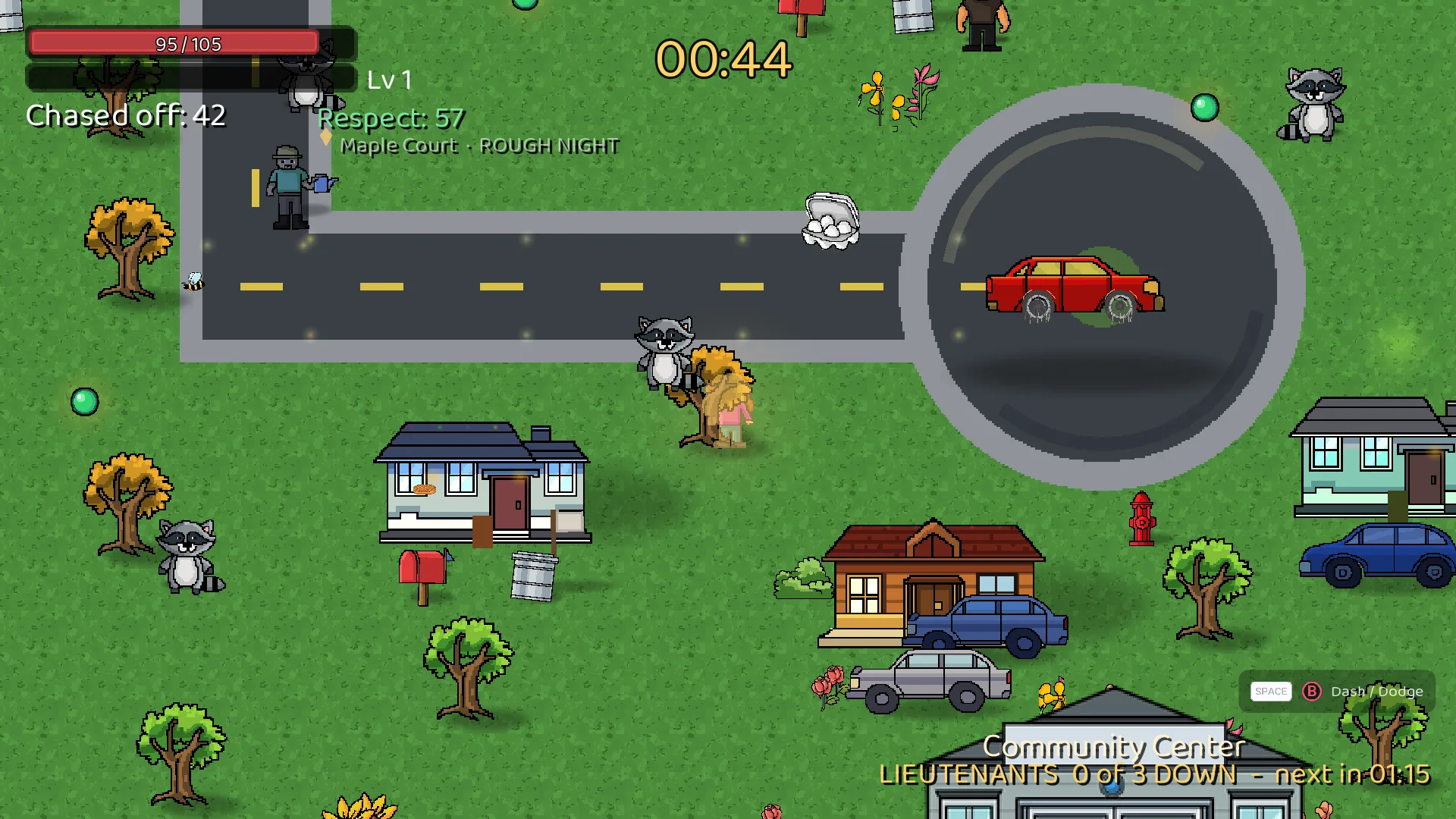
The crew showing through trees as colored silhouettes, full scene
Your crew member showing through trees, houses and cars as a colored silhouette.

  • The HUD shows the difficulty next to the stage name.
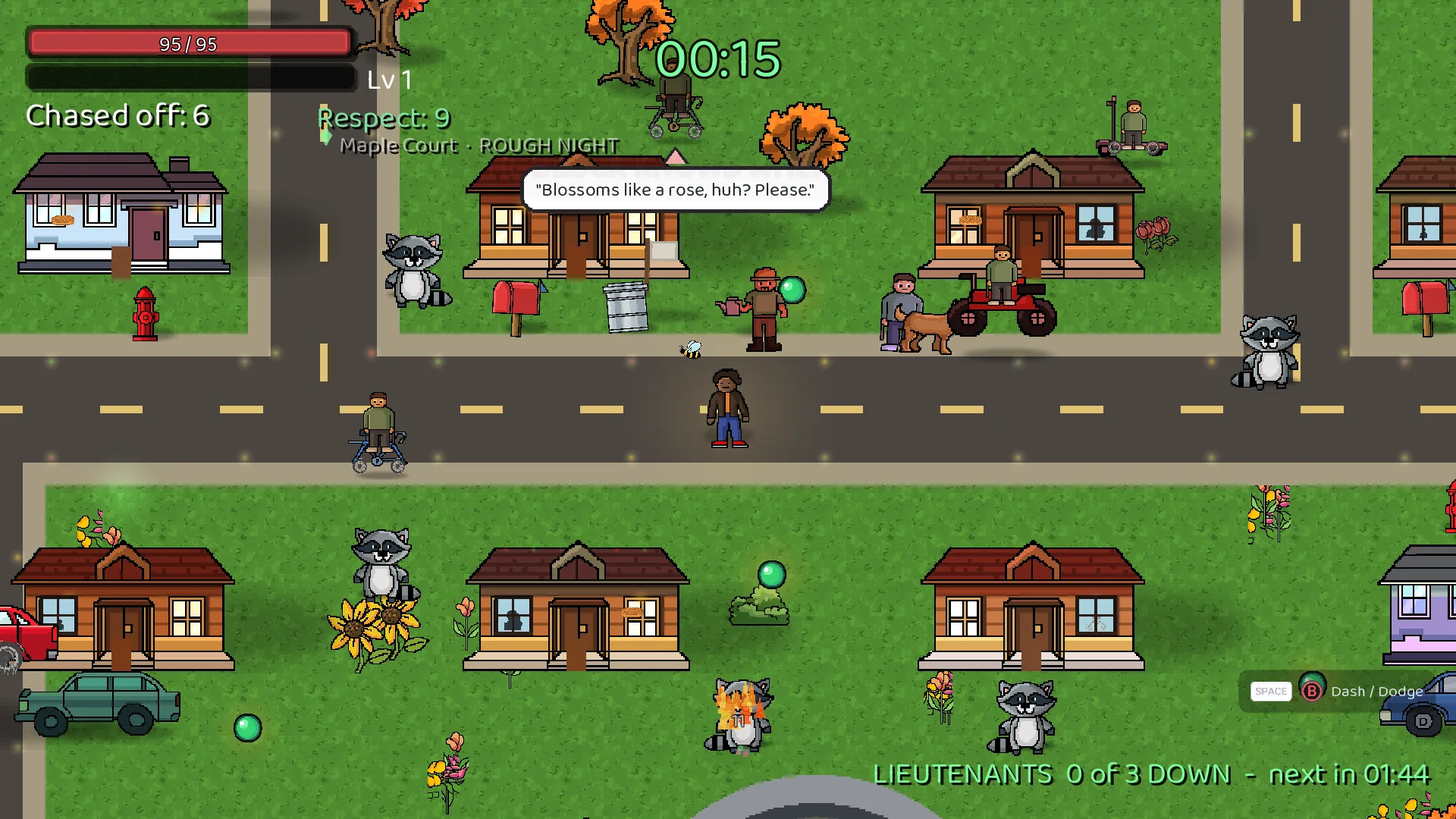
The HUD showing the Rough Night difficulty next to the Maple Court stage name
The HUD shows the difficulty next to the stage name.

  • The mouse wheel scrolls help screens from anywhere, and Esc goes back on every menu.
  • Every new line of text ships in all 16 languages the game supports.

None of these are headline features. All of them are the difference between a game that feels finished and one that doesn’t.

Hosting it myself
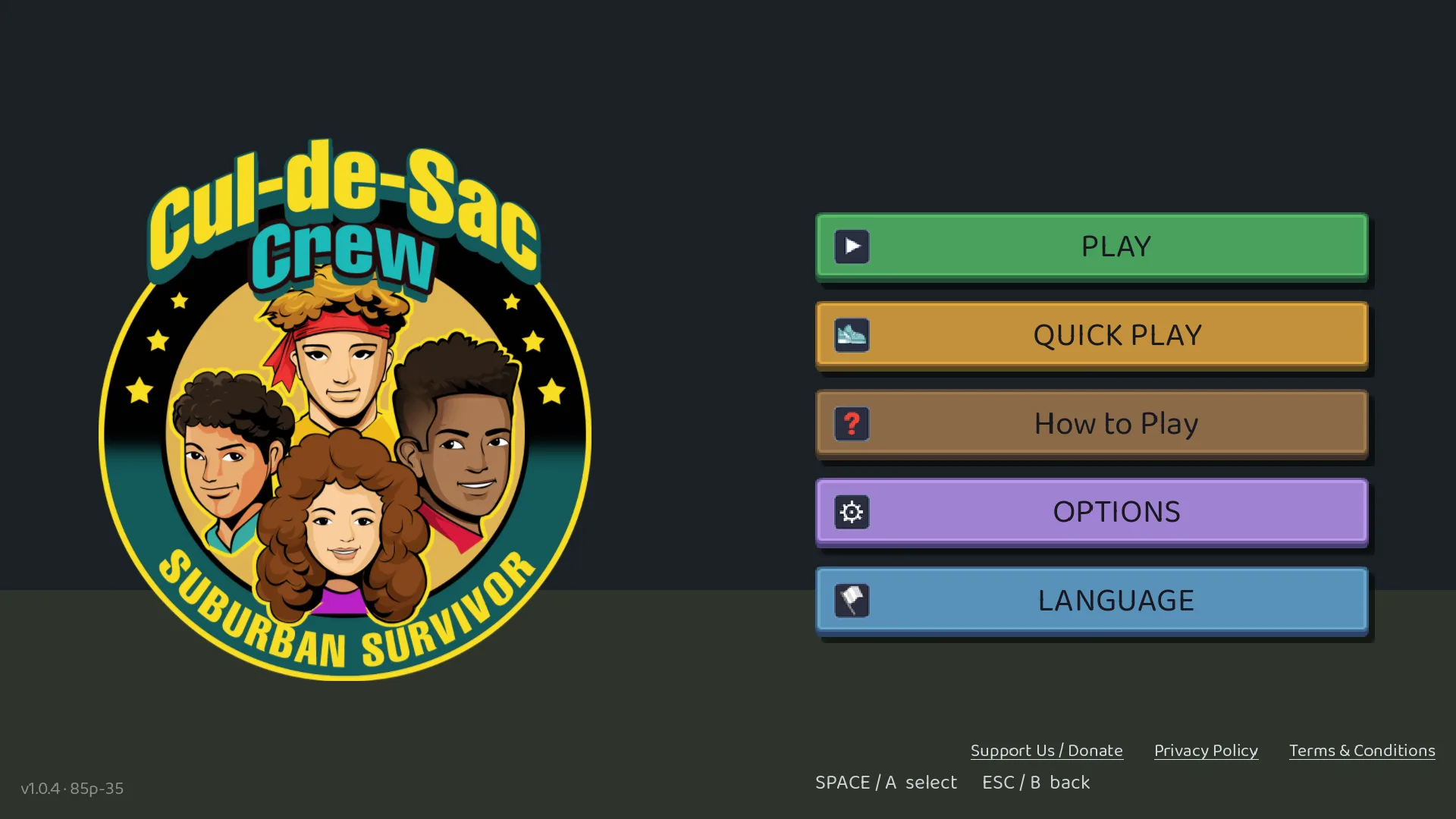
The browser version's title screen with Support Us / Donate, Privacy Policy and Terms & Conditions links
The browser version’s title screen with Support Us / Donate, Privacy Policy and Terms & Conditions links.

The full browser version lives at play.culdesaccrew.com, hosted by me instead of a game portal. That means I control the experience, the privacy and the support link you see on the title screen. Portals have their place. For a game I’m putting my name and my business behind, owning the platform was the right call.

What’s next

Android is in testing, and the Steam demo is on the way. In the next post, I’ll go deep on the work that went into keeping this game safe for kids, from how ads are requested to how the Privacy Policy and Terms match what the game actually does.

If you’re a business owner thinking about building something of your own, or you need help with your website or IT, you know where to find me.

Work hard and play harder.

Why I Made Cul-de-Sac Crew

I’ve been talking about Cul-de-Sac Crew for decades. Here’s why I finally built it, who it honors, and what comes next.

I always wanted to make a video game. It started in the 1990s, when I was a teenager playing Zombies Ate My Neighbors. I never let go of that feeling. Anyone who has known me long enough will tell you I’ve been talking about Cul-de-Sac Crew™ for decades.

Then I played Vampire Survivors, and it clicked. That was the kind of game I could actually build.

I Wasn’t Starting From Zero

I’ve worked in IT since 2001 and have run my own web design and development business on the side since 2004. Back in the early 2000s I launched a resume building app, getnoticedfirst.com, which I plan to bring back soon. I’ve been an adjunct professor since 2015.

Over the years I’ve done media design, creative direction, project management, development, IT support and maintenance, planning, procurement, supervision, and training. Every one of those skills went into this game.

When AI got good enough to help build video games, I jumped right in. In July 2026 I started creating art and learning Godot. Now it’s October 2026, and it’s push to launch time.

What the Game Is

Cul-de-Sac Crew: Suburban Survivor is a top-down survivors game with a Saturday morning cartoon feel. You play as one of the kids on Maple Court, and the block is under siege. The animals want your Treats. The people want your Blessings. Your job is to take back the block.

Nobody gets hurt in this game. Everybody gets chased off, and every one you chase off earns you Respect. You fight through five stages: Maple Court, a haunted mansion, a corn maze, a parking lot, and the mall, where Big Bad Maple Man is waiting for you.

The four starting crew members outside a cafe, with pets and cookies

This Game Is Personal

The good neighbors who help the Crew honor real people in my life.

Grandma Lilly honors Ms. Leslie Coach, my teacher when I was a kid in North Philadelphia. Annie honors my late mother, Angela. Dad-Dad honors my late father-in-law, James. Sally honors my late sister, Saleah, and Farmer Tee honors my sister Tiara.

My daughter Gabriella helped design it.  The Crew itself comes from Gabby’s childhood drawings.

Where You Can Play

The game started on the web, mobile is next, and Steam follows in early 2027.

Everything lives at CuldesacCrew.com.

This Is Only the Start

I put my passion, my soul, my creativity, and my direction into Cul-de-Sac Crew: Suburban Survivor. And this is only the start.

Cul-de-Sac Crew is a series. My daughter and I are already working on our second game, Cul-de-Sac Crew: Living Large. More games under the Cul-de-Sac Crew name are on the way.

That’s my why.

Demetrius Pinder
Nuts and Bolts Web Design


Raspberry Pi, Cookies and Edge AI: CAS IT at the UD Tech Fair 2026

Updated on 3/14/26 (Pi Day!) with Pictures and Videos:

On, Tuesday, March 10th, I will be at the University of Delaware Tech Open House from 11am to 2pm, presenting alongside my colleague Eric Cantrell, Director of CAS IT. We are representing the College of Arts and Sciences Information Technology team with a booth that is simple, hands on, and genuinely fun to walk through. And yes, my daughter is bringing cookies, so come through hungry. 🍪

What the Tech Fair is about

The Tech Fair brings together departments, staff, and IT professionals from across UDEL, and it gives everyone a chance to see the projects that are actually running on campus. You get to see real systems, real experiments, and real work, not just slides or concepts.

Our theme this year is “Have some Pi with CAS IT” 🥧 You will notice a pattern if you look closely.

What We Are Bringing

We are running four Raspberry Pi projects live at the table, no mockups, no screenshots, just the hardware doing what it does.

🥧 Raspberry Pi 5 with Hailo 8L, Real Time Person Detection

A Raspberry Pi 5 paired with a Hailo 8L accelerator, running person detection entirely at the edge. When someone enters the frame, the system sends a Telegram alert, then captures a delayed full body snapshot so the image is clean. Everything stays local, nothing leaves the room.

Click to download this project’s handout (.pdf format).

🍪 Raspberry Pi 5 with BVM and Windows 11 ARM, Zoom Rooms Digital Signage

This is our main project. A Pi 5 runs Botspot Virtual Machine, which boots Windows 11 ARM, which runs the Zoom Rooms Digital Signage client. Departments can update their own signage, including images, videos, and web content, directly through the Zoom Rooms portal. No IT ticket needed. We are actively exploring this as a real deployment option for CAS.

Click to download this project’s handout (.pdf format).

🥧 Raspberry Pi 4 with Stanford Alpaca, Offline AI Chatbot

A Raspberry Pi 4 running a fully offline AI chatbot using Stanford Alpaca 7B through llama.cpp with 4 bit quantization. No internet, no subscription, just a Pi having a conversation with you in a terminal window. It is slow, but the fact that it works at all is the point.

Click to download this project’s handout (.pdf format).

🍪 Raspberry Pi 4 with Batocera, Arcade1Up Countercade Conversion

An Arcade1Up Pac Man countercade, rebuilt from the inside out. I replaced the original PCB with a Pi 4 running Batocera, added an LVDS driver to keep the original eight inch vertical screen, routed audio through the same board, upgraded the controls, and added a second controller. It looks factory made, but it plays hundreds of classic games. It stays completely offline.

Click to download this project’s handout (.pdf format).

Who I Am

I am Demetrius Pinder, MBA, Computing Support Specialist II at the University of Delaware, Adjunct Professor at UDEL and Delaware Technical Community College, and Owner and Project Manager of Nuts and Bolts Web Design. I enjoy taking hardware that should not be able to do something, and making it do it anyway.

You can reach me at [email protected], find me on campus at UD, or see more of my work at nabwd.com.

Come Through

📅 Tuesday, March 10, 2026 🕙 11:00am to 2:00pm 📍 Trabant Multipurpose room, University of Delaware

If you want to talk Raspberry Pi, edge AI, retro gaming, or you just want a cookie, stop by the CAS IT table. We will be there.

Demetrius Pinder and Eric Cantrell, CAS IT
Demetrius Pinder, CSS II, CAS IT
Eric Cantrell, Director, CAS IT

#RaspberryPi #EdgeAI #DigitalSignage #RetroGaming #UDel #CASITUDel #TechFair2026 #NutsAndBoltsWebDesign

Intro to Excel: Winter Semester 2023

Some people have expressed interest in enrolling into my “Intro to Excel” course, which is starting on Thursday, January 5th, 2023. Here are the details below. If you’re not already enrolled as a student at UDEL, please scroll to the bottom for registration details. UDEL students just need to find my course in the course catalog to register.

UAPP 467/667 – 014:  Intro to Microsoft Excel

Instructor:  Mr. Demetrius Pinder

COURSE OBJECTIVES: Intro to Excel, is a course designed to develop your familiarity with this spreadsheet software. During the semester, you will be exposed to Excels basic data entry functions, creating appealing charts, creating graphs and tables. This course includes usage of Excel simulations, videos, audio PowerPoint and in class assistance from the Instructor.
By the end of the semester, you are expected to be able to competently use Microsoft Excel.

Class location:
Pearson Hall Room 305
101 Academy St, Newark, DE 19716, United States

Class time and date:
Winter (1/5/23 – 2/2/23): 4 weeks
Thursday nights from 4-5pm.

Please contact Mr. Pinder with any questions or for more information!

E-mail: [email protected]
Telephone: Office (302) 831-2903

Office Hours: By appointment only
Zoom Registration Link:  Join the class for the link.

Course Syllabus:
Click here to view the Syllabus (.pdf format).

If you’re not an UDEL student, please read this below:

Whether you are interested in taking individual courses to fulfill personal, educational or professional goals or looking to take classes prior to admission or readmission to a degree program, you may enroll in UD courses as a non-admitted student. You do not need to be officially admitted to the University to take credit courses. As long as you meet course requisites, many University of Delaware courses are available to non-admitted students on a space available basis. Non-admitted students are designated as Continuing Education Non-Degree (CEND) if they are taking undergraduate courses or as Graduate College Non-Degree (GCND) if they are taking graduate courses.

Register for classes here: https://www1.udel.edu/registrar/course-info-registration/register-for-classes.html

If you’re interested in attending my in-person or online course, please email me at [email protected] or [email protected] (or via social media), if you run into trouble registering.

-Demetrius

Parental Controls in Online Gaming

Table of Contents:

What are Parental Controls in Online Gaming?

Parental controls in online gaming are software and tools that allow parents to set controls on their children’s online gaming platforms like Microsoft, Sony, Nintendo, etc. They are designed to help protect children from such kind of content, which is not suitable for their mental health. These controls can be used in many ways, e.g. to help ensure that your children access only age-appropriate games, to set usage times, and to monitor activity, etc. It allows the parents to have an eye on their children’s online gaming activities like where they are spending their money and time.

How Microsoft Helps in Parental Controls

Microsoft helps the parents in Parental Controls in different ways. It not only has a family plan about it but also provides some different controls on every game it offers. It has many parental control plans for child health care. Microsoft owns the XBOX brand.  Some of the major Microsoft family features are as follows:

  • Set screen time limits
  • Set app and game limits
  • Require kids to ask a parent before buying any stuff
  • Set age limits
  • View child’s activity report
  • Have a fund account for your child

How Sony Helps in Parental Controls

Sony offers parents Parental Controls in different ways. It also has a family management tools where you can assign roles to yourself, other adult family members and child family members under the age of 18.

Sony’s Parental Controls allows you to:

  • Restrict your child’s access to the PlayStation web browser
  • You can set monthly spending limits to specify how much children can spend at the PlayStation store each month
  • Set up layers of pass code protection, allowing you to disable guest logins and prevent changes to parental control settings.
  • Set age restrictions for Games, Blu-Ray Discs and DVDs
  • Disable Chat, messaging and content sharing

How Fortnite helps in Parental Controls

Fortnite is one of the highly-rated games in the world and a huge part of its massive fan base are children. To let your kids enjoy their childhood with these amazing games without inappropriate content, Fortnite also provides parental controls. Fortnite is a multiplayer game, which implies your children may wind up playing with complete outsiders notwithstanding their companions.

You can disable all in-application buys on your kid’s iPhone and iPad* through its settings. You can even keep unknown individuals from seeing your kid’s in-game name. In addition to controls designed to prevent your child from interacting with unknown people, parental control likewise allows you to view time spent playing on a daily or weekly basis to monitor how much time your child is sinking into the game.

* Please note that as of August 2020, Fortnite isn’t available via iOS. View more details here:  https://www.epicgames.com/site/en-US/free-fortnite-faq

How Roblox helps in Parental Controls

Roblox is an online video game that energizes inventiveness and correspondence between players, of all ages. There is no age limit for playing Roblox, which implies that gamers will conceivably be connecting with others in various age gatherings and witness content that might not be appropriate for their mental health. Roblox offers various extraordinary highlights that permit guardians to restrict who their children cooperate with while yet giving them an opportunity on the stage. In this screen-centered world, kids love gaming and guardians should attempt to make a solid screen time balance as video gaming has both advantages and disadvantages.

As a feature of Family Zone’s numerous useful highlights, they can block Roblox from your youngsters’ gadgets, without obstructing different games they might be permitted to play. The absence of control (despite language filters) in the visit highlight and transferred client content leaves kids in danger of openness to a stressful scope of unseemly grown-up substance, harassing, and misuse.

I also have my own avatar in Roblox and will join in my childs gaming sessions. This is a good way to monitor their activity in Roblox and to also spend time with them playing the many games that Roblox has to offer.

How Nintendo helps in Parental Controls

Just like the Nintendo 3DS parental controls before it, the Nintendo Switch’s parental controls empower a parent to limit their youngster’s time or primarily screen what they have been utilizing it for. Here area unit a little of its elementary highlights:

  • Keep a watch on playtime – set screen limits
  • Decide that game they will play – you will set custom choices based upon the age of your child
  • Customize online options – Limit sharing of in-game text or pictures per game, limit the flexibility to post screenshots to social media

Microsoft Family Plan

The Microsoft family plan is the best plan for parental control. It not only ensures the children’s mental health but also finds the location of children if they are apart from their family by Microsoft family map. It also filters out all the appropriate games according to the age of users so that they can play the games that are relevant for their growing health. It limits the screen time of device usage. It also provides the weekly report of children’s activity and shows the screen time of their device usage.

  • Set screen limits

Learn how to set screen time limits on your child or family member’s Xbox and Windows devices. See how much time they have left for the day, give them more time, or decide time’s up. You can set limits on https://family.microsoft.com or the Family Safety app.

  • Set app and game limits

On the off chance that your child is investing an excess of energy in certain applications or games, you can draw certain lines on that application or game to assist them with accomplishing a good arrangement. Application and game cutoff points are accessible on Windows 10 and Xbox gadgets, alongside Android gadgets with Microsoft Family Safety, introduced.

When you set a boundary, that cutoff will work across the entirety of their gadgets. (For example, if you give them two hours on YouTube, they can spend a total of two hours on YouTube across Windows 10, Xbox, and Android.) Always allowed games will appear in the apps and games card. If you get a request for your kid or relative to download an application or game that is over their age limit, it will show up in the allowed section.

  • Require kids to ask a parent before buying any stuff

You can set up a family member’s account to require adult approval for the things they want to buy in the Microsoft Store—except for what they get with gift cards or money in their Microsoft account. Only organizers will be able to approve. Parents should get an email or any message whenever the child tries to buy any stuff from online gaming websites or apps. Therefore, parents should know that what kind of stuff their children are using or buying to use. This will help the parents to be updated about their children’s activities and will know what their children are currently doing.

  • Set age limits

XBOX also provides an age limit for everyone to play by setting the age limits and other settings on the family settings group, it will provide its users a more comfortable and reliable platform. The user will only be able to see the games according to his/her age. Other games will be filtered out. This will help the parents to be more satisfied with the health of their child and do not have to keep a parent’s control on their children every time they use it.

  • View Child’s activity report

When you add your child to your family group and turn on activity reporting, you will get weekly activity report emails that show you a summary of their activity on Microsoft Edge and Windows 10, Xbox, and Android devices that have Microsoft Family Safety installed. The reports include games and apps they used websites they visited, terms they searched for on search engines like Bing, and how much screen time they had.

You can also view activity reports and turn the setting on or off from the web or in the Microsoft Family Safety app. Along with the activity report, you will also be able to see the screen time of your child’s devices. For a breakdown of your child’s overall time spent on each of their devices, the Screen time section indicates when and for how long your child used their devices throughout the week. You will see a list of how much time they spent on their devices overall by each day, and how much time they spent on each device during the entire week.

  • Have a fund account for your child

Microsoft allows you to fund an account for your child, avoiding the need to store a credit card. You can share the benefits of a single Xbox Live Gold subscription with anyone who uses your Xbox One or Xbox Series X|S console. This feature does not allow others to buy content while using the credit card that’s linked to your subscription. If you are concerned about access to your profile and billing information, ensure that, everyone who uses your console signs in with their own Xbox profile. Following are ways to prevent unauthorized purchases and changes to your Xbox profile and Microsoft account:

  1. Create and manage a passkey for your XBOX Console
  2. Require a passkey for purchases on your XBOX One Console
  3. Make a profile for everyone who uses your console
  4. Control your payment info
  5. Add money to your child’s Microsoft account
  6. Manage kids in your Microsoft family group by using the Xbox Family Settings app and set limits on how much kids can spend in the Microsoft store
  7. Turn on Ask a parent
  8. Sign out when you’re done using your console. 
  9. Add a guest account.

How to activate Microsoft family safety parental control in Windows 10

To set the most recent Windows Parental Controls and Microsoft Family Safety features, both parent and child need to have a Microsoft Account.

The following steps are only applicable if the child logs into the Microsoft account:

  • Select Start and choose Settings to launch the Windows Settings app.
  • Select Accounts.
  • In the left pane, select Family & Other Users.
  • Select Add a Family Member if your child does not have a separate account on your device. This step launches a Microsoft Account wizard.
  • Select Add a Child the either enter your child’s email address or select The Person I Want To Add Doesn’t Have An Email Address.
  • Read the information offered (what you see here depends on what you selected in Step 5), and choose Close.

Conclusion

Families have responsibilities and duties of taking precautions for their children to balance their physical as well as mental health. The Parental Control feature in online gaming effectively prevents children’s attempts to access unwanted content of games that are inappropriate for their age and can cause serious mental issues. Of course, only parents can decide which categories of games are off-limits to their children.

Online gaming is here to stay, but it has a lot of disadvantages. Parents should set up parental controls and monitor their children’s online behavior. As a parent, I make sure my child’s online experience is monitored closely. I have enabled the following parental controls on my child’s devices and I figured other people would find this information to be helpful.

Happy Gaming!
– Demetrius

Â